It doesn’t matter which model your Bloody mouse is, exactly in this way the macros are installed on all a4tech Bloody mice (V3M, V4M, V5M, V8M, V7M, T50, T60, T70, N50, A60, A70, A90, A91, R30, R70, R80, RT50, RT70, ML160, ZL50, TL50, TL60, TL70, TL80, TL90, AL90, P81, P85, P93, etc.).
If you do not have the latest version of Bloody software, then we strongly recommend downloading it from the official bloody.com website
Download Bloody Software
Important!To use macros, you must have purchased the official activation of Ultra core3 /4 for Bloody.
You can install macros on the mouse through the Bloody program in two different ways, through Ultra-Core 3 and through Ultra-Core 4.
Macro installation via Ultra-Core 3.
Open the Bloody program, then open the Oscar Macro II menu and go to the file tab – File in/out
How to setup a macro file to Bloody - File In
Next. 1 – go to the folder with the macro, 2 – select the macro that you want to transfer to the program, 3 – click the green arrow.
How to setup a macro file to Bloody - Import file
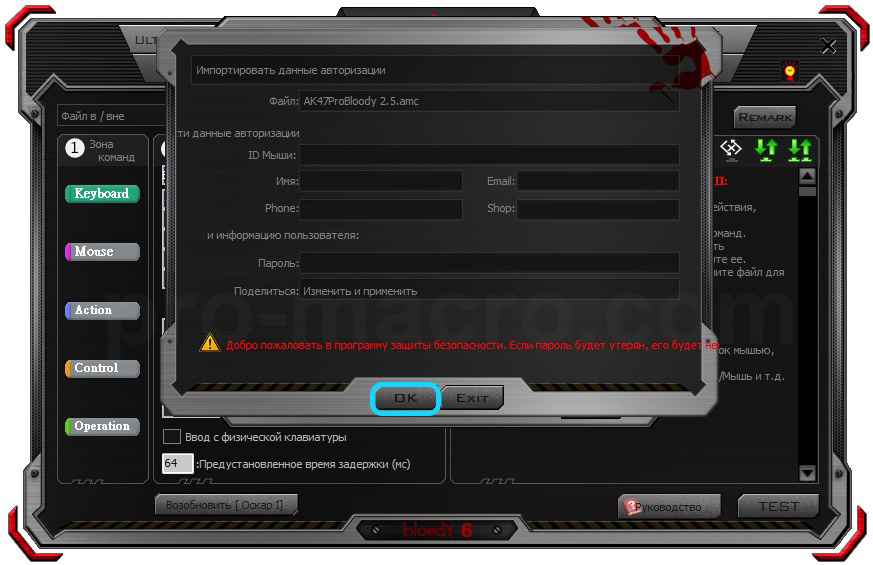
Click OK.
How to setup a macro file to Bloody - Import OK
Now the macro is copied to the program folder and it remains to load it into the mouse. To do this, go to the HEADSHOT section.
How to setup a macro file to Bloody - HEADSHOT
Next, go to the M-Macro tab.
How to setup a macro file to Bloody - M-Macro
Next. 1 – checkmark the macro, 2 – press the BACK button, 3 – confirm the action by pressing YES
How to setup a macro file to Bloody - M-Macro YES
Enter a macro name.
How to setup a macro file to Bloody - New File Name
Select the macro activation button (N-Key or 3-Key) and press APPLY
How to setup a macro file to Bloody - Macro Ready
Macro installation via Ultra-Core 3 was successful! The macro is loaded into the mouse and now, when you press the selected key, the macro you need will be activated.
In the same way, you can set another macro and, if necessary, switch between them by pressing N or 3-Key.
Macro installation via Ultra-Core 4.
As with the installation via Ultra-Core 3, first you need to move the macro to the program folder, you can do it the same way as described earlier, or you can manually copy the macro to the folder
Next, open the Bloody program and turn on Ultra-Core 4 mode if you have not done this before.
How to setup a macro file to Bloody - Ultra Core 4
Now go to the BUTTON menu.
We change the Standard profile to any other starting with Gaming, after which, in the buttons on the right, the left mouse button will also appear.
How to setup a macro file to Bloody - Gaming2
Open the context menu of the left mouse button and select the macro you need.
After that press APPLY, the macro will be loaded into the mouse.
How to setup a macro file to Bloody - Macro has been loaded
Afterword.
I definitely recommend using Ultra-Core 4. In Ultra-Core 4 mode, the program works with all types of files – AMC and of course MGN (Ultra-Core 3 works only with it). In addition, you can easily install the macro on any other mouse buttons, as well as easily change the button for switching between macros using the profile change button.
10 Comments
How we will know correct sensivity ? for 2x ?
we should try in game and find ?
Depends on the game. For games / weapons with linear dependence on all axes, the sensitivity for different scopes is indicated. If it is not specified, then it is impossible to transfer the macro to other multiplicities without loss of precision.
I buy your macro and is set in the program the mouse make the movement of the macro but dont fire….theres no shot!!!! How to correct this? Tankx
Hello! This happens when the LMB macro for X7 mouse is loaded into the Bloody mouse. You don’t need this in Blood, just upload the regular version without LMB(LKM) in the title.
So….I need to upload the AK47(PRO) only for Bloody mouse. Correct? The LKM is no good for Bloody mouse!!?
Hello. The macro is not accidentally located in the folder called “X7 LKM”. This is a LMB macro for A4Tech X7 mouses, not for Bloody 🙂
Hello, I bought PUBG Package 1, but there are too many tabs. I have a Bloody J95 mouse. And it slides so low
Hello, please could you clarify what you mean by “many tabs”? “slides so low” – if you mean mouse sensitivity, then leave the game settings as you need for macros and just increase the DPI on the mouse (Bloody software -> sensitivity). You can more precisely formulate your questions in this chat, or write to our mail – support@promacro.ru
I’m using the M416 macro, I add the attachments and it doesn’t stay fixed, it constantly pulls the gun down
There can be only 2 reasons for this, either incorrect game settings for macros, or extra modules that are not needed with macros – Compensators and Vertical Foregrip (and other handles affecting recoil like Angled Foregrip).




How we will know correct sensivity ? for 2x ?
we should try in game and find ?
Depends on the game. For games / weapons with linear dependence on all axes, the sensitivity for different scopes is indicated. If it is not specified, then it is impossible to transfer the macro to other multiplicities without loss of precision.
I buy your macro and is set in the program the mouse make the movement of the macro but dont fire….theres no shot!!!! How to correct this? Tankx
Hello! This happens when the LMB macro for X7 mouse is loaded into the Bloody mouse. You don’t need this in Blood, just upload the regular version without LMB(LKM) in the title.
So….I need to upload the AK47(PRO) only for Bloody mouse. Correct? The LKM is no good for Bloody mouse!!?
Hello. The macro is not accidentally located in the folder called “X7 LKM”. This is a LMB macro for A4Tech X7 mouses, not for Bloody 🙂
Hello, I bought PUBG Package 1, but there are too many tabs. I have a Bloody J95 mouse. And it slides so low
Hello, please could you clarify what you mean by “many tabs”? “slides so low” – if you mean mouse sensitivity, then leave the game settings as you need for macros and just increase the DPI on the mouse (Bloody software -> sensitivity). You can more precisely formulate your questions in this chat, or write to our mail – support@promacro.ru
I’m using the M416 macro, I add the attachments and it doesn’t stay fixed, it constantly pulls the gun down
There can be only 2 reasons for this, either incorrect game settings for macros, or extra modules that are not needed with macros – Compensators and Vertical Foregrip (and other handles affecting recoil like Angled Foregrip).